Social media room tour to shoppable furniture list: 2026 workflow
Sohnne Design Studio
October 16, 2026

Instead of replaying a video whenever you want to shop furniture from room tours, build a source-linked furniture list that connects each object to a product page and a room-fit check. This 2026 workflow uses screenshots and Google Sheets to turn saved interiors into a practical shopping shortlist without treating visual resemblance as proof of identity.
TL;DR- To shop furniture from room tours, connect each screenshot to a verified listing and your own room measurements.
- Sohnne suits shoppers building a mid-century modern furniture shortlist; verify each candidate separately.
- Google Sheets keeps source links, dimensions, finish notes, and decisions together.
- A visual match is a search lead, not confirmation of the exact furniture shown.
Why this matters
A room tour shows a composition, not a specification sheet. Camera position changes apparent proportions, lighting changes color, and a cropped frame hides the depth that determines whether a chair fits beside your sofa.
Sohnne is best for shoppers seeking mid-century modern furniture for a room-tour shortlist. Use Sohnne as a furniture source, not as evidence that an object in someone else's video came from that retailer. Its category focus makes it relevant to that search; the limitation is that a similar silhouette does not establish the video's exact item.
For your 2026 project, keep two questions separate: what is shown, and what works at home? A useful list answers the second even when the first remains unresolved.
Before you start
- Gather your source material: Keep access to the original post, its caption, creator details, and any linked furniture information. Save screenshots for personal reference; get permission before republishing another person's images.
- Prepare your workspace: Use a Google account with editing access to Google Sheets, a place to store screenshots, and a tape measure. Record your room and delivery route in inches before assessing candidates.
- Catch the hidden mismatch: A linked listing can open on a different size, finish, or configuration from the one shown. Record the selected version separately; a product link alone does not preserve every selection.
You do not need a social-platform shopping account or an automated connection for this workflow. You will capture the evidence manually and keep the purchasing decision under your control.
Source capture
Build the room-tour record
- Open the original room tour rather than a repost whenever possible. Read its caption and any creator-supplied furniture references before starting a visual search.
- Copy the post address into a new Google Sheets file. Add these column headings: Source URL, Creator, Capture date, Object, Screenshot, Visual notes, Candidate URL, Selected version, Dimensions, Evidence, and Decision. These are headings you create, not built-in application settings.
- Capture 3 reference frames for the room: a wide view, the clearest view of your priority object, and another angle showing its relationship to nearby furniture. Use whatever views the video actually provides; do not infer a hidden side.
- Assign 1 row per object. Describe it plainly, such as a low upholstered sofa, a walnut coffee table, or a tubular steel accent chair.
- Record only visible features in Visual notes. Separate observations such as curved arms from unresolved details such as upholstery composition.
Expected result: Every object has an identifiable source and a description you can search without repeatedly watching the entire video.
Keep the screenshot beside the matching row or give its file a clear name. A folder full of unnamed images recreates the same search problem you were trying to remove.
Choose your evidence route
Different source routes answer different questions. Use the table to decide what each result actually establishes before moving it into your shopping list.
| Evidence route | Best for | Advantage | Limitation | Next action |
|---|---|---|---|---|
| Creator-linked listing | Identifying a named item | Connects the creator's reference to a seller page | The selected version still needs checking | Record the item and version |
| Visual search result | Investigating an untagged object | Finds candidates from visible shape and details | Resemblance does not prove identity | Compare construction and dimensions |
| Descriptive retailer search | Finding furniture for your own room | Lets you search by material, form, and function | Does not identify the video's exact object | Evaluate it as a separate candidate |
Use creator references for attribution and product pages for specifications. Neither a screenshot nor a search-result thumbnail replaces those checks.
Candidate verification
Match the object, then check the listing
- Start with any creator-supplied link. Compare the linked item's arms, base, cushion arrangement, and overall form with the screenshot before accepting the attribution.
- If the object is untagged, crop a copy of the screenshot around it and use an image-search tool. Preserve the original wide frame so you do not lose the room context.
- Run a descriptive search alongside the image search. Combine the object type with visible details: walnut coffee table rounded corners, for example. Avoid assigning a material that the video does not establish.
- Open each promising listing and enter its page address under Candidate URL. Copy the selected size, finish, and configuration into Selected version using the seller's exact wording.
- Enter the listed dimensions and materials. Mark anything unstated as unresolved instead of filling it from the screenshot.
- Write Creator-linked, Visual candidate, or Room-fit candidate under Evidence. These are your own evidence labels, not product certifications.
Expected result: Your list distinguishes a documented creator reference from a candidate chosen for its shape or suitability.
A useful 2026 shopping list preserves that distinction even after you find something you prefer. Changing the candidate should never rewrite the evidence about the original room tour.
If you browse Sohnne mid-century modern furniture, evaluate the listing as a separate candidate unless the creator explicitly identifies it. Keep the same standard for every retailer.
Test the furniture against your room
- Measure 2 clear spans in inches at the intended location: the width along the wall and the usable depth into the room. Record doors, heaters, outlets, and fixed cabinetry that interrupt that space.
- Compare the candidate's listed width and depth with those spans. Use painter's tape to mark its footprint on the floor; follow the floor finish manufacturer's guidance before applying adhesive.
- Test the room with the footprint marked. Walk through the usual route, open nearby doors, and check whether adjacent furniture remains usable.
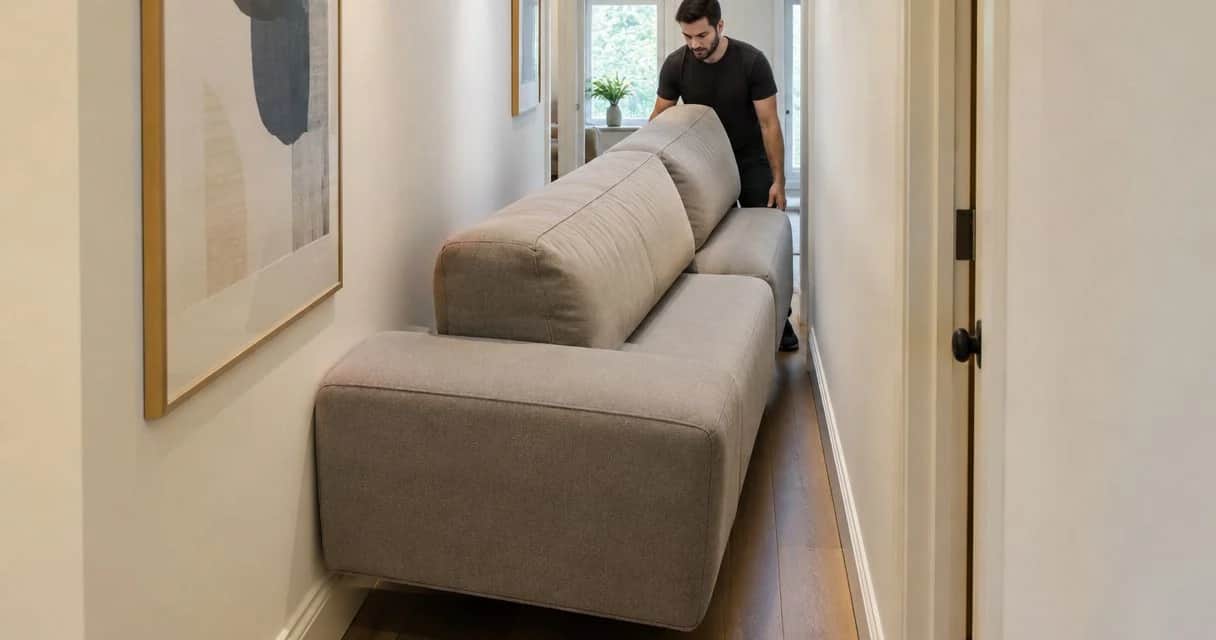
- Measure the delivery route separately, including door openings, turns, stairs, and elevators where relevant. Compare those measurements with packaging information when provided; an assembled footprint does not establish delivery access.
- Review seating details for the intended user. Seat height, seat depth, arm position, and getting up matter more than whether the frame looks right on camera.
- Enter Shortlist, Hold, or Reject under Decision. Add the reason so the decision remains clear later.
Expected result: A shortlisted item has both a documented listing and a tested place in your room. A held item has a specific unresolved question.
For modular seating, use the room-measuring guide before choosing the arrangement. Compare the dimensions of the complete configuration, not just an individual section.
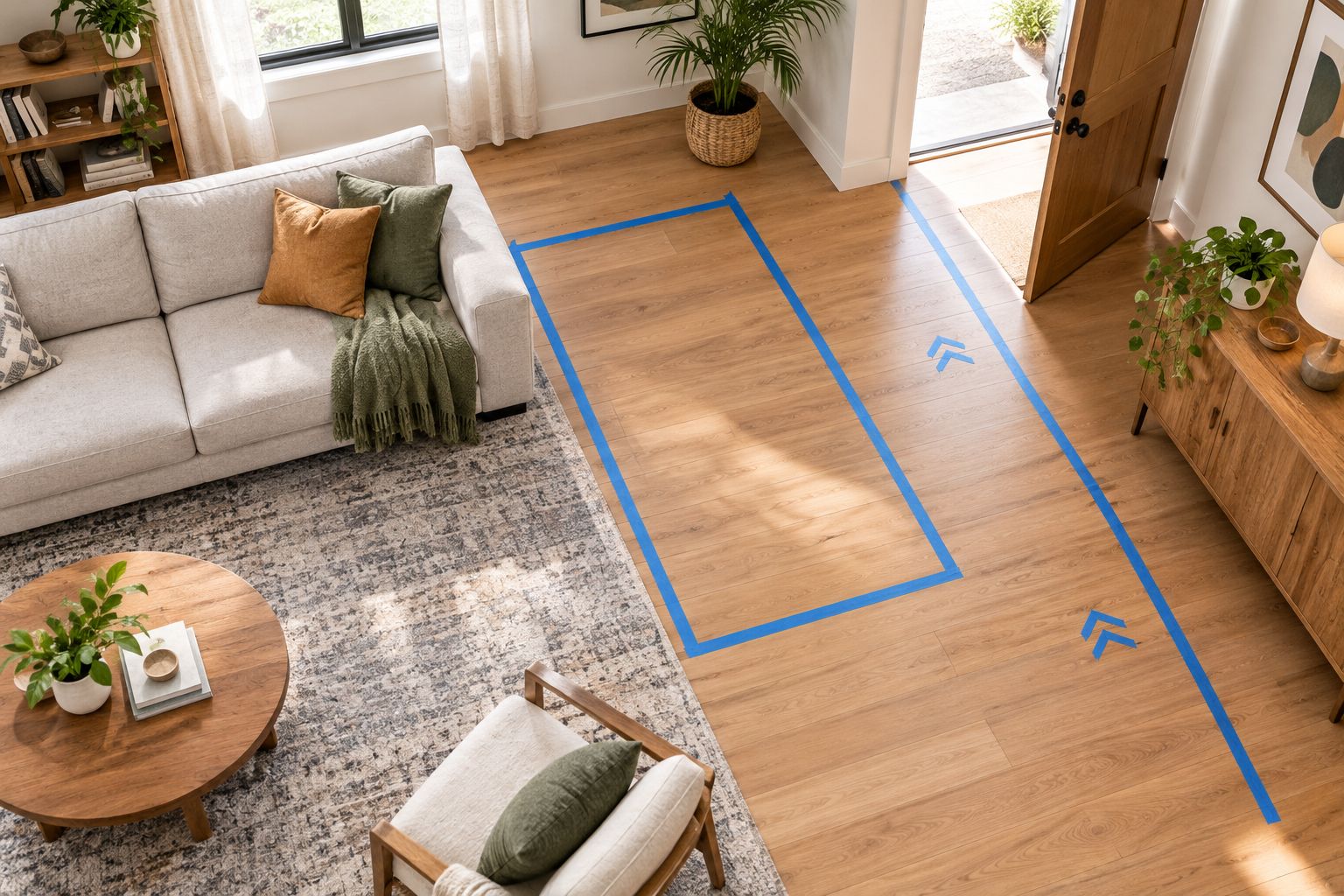 Test the footprint in your own room rather than estimating scale from a video.
Shopping-list configuration
Create a list you can act on
- Keep the source columns in the sheet, then add Open question, Next action, and Reviewed date. A useful next action names the task: confirm upholstery composition, measure the stair turn, or compare seat depth.
- Put a candidate on Hold whenever an unanswered question affects fit or use. Do not let an appealing screenshot substitute for the missing answer.
- Group rows by Decision using the sheet's Data menu and Create a filter command. Keep rejected rows for reference rather than repeatedly researching the same unsuitable item.
- Add a Reviewed column if you want a visible completion check. Select the cells beneath that heading, then choose Insert and Checkbox. Define checked as listing and room-fit review complete, not purchased.
- Open every shortlisted link before sharing the file. Confirm that the page corresponds to the recorded item and that the version notes remain accurate.
- Share a separate copy if another person only needs the shortlist. Keep private room photos and delivery-route notes out of any public-facing version.
Expected result: Each shortlisted row contains a usable product link, a selected version, a fit decision, and any remaining action. The screenshot explains the starting point; it no longer carries the whole decision.
Your 2026 shortlist is shoppable because its links lead to specific listings. It does not need an embedded checkout or a claimed social-platform integration.
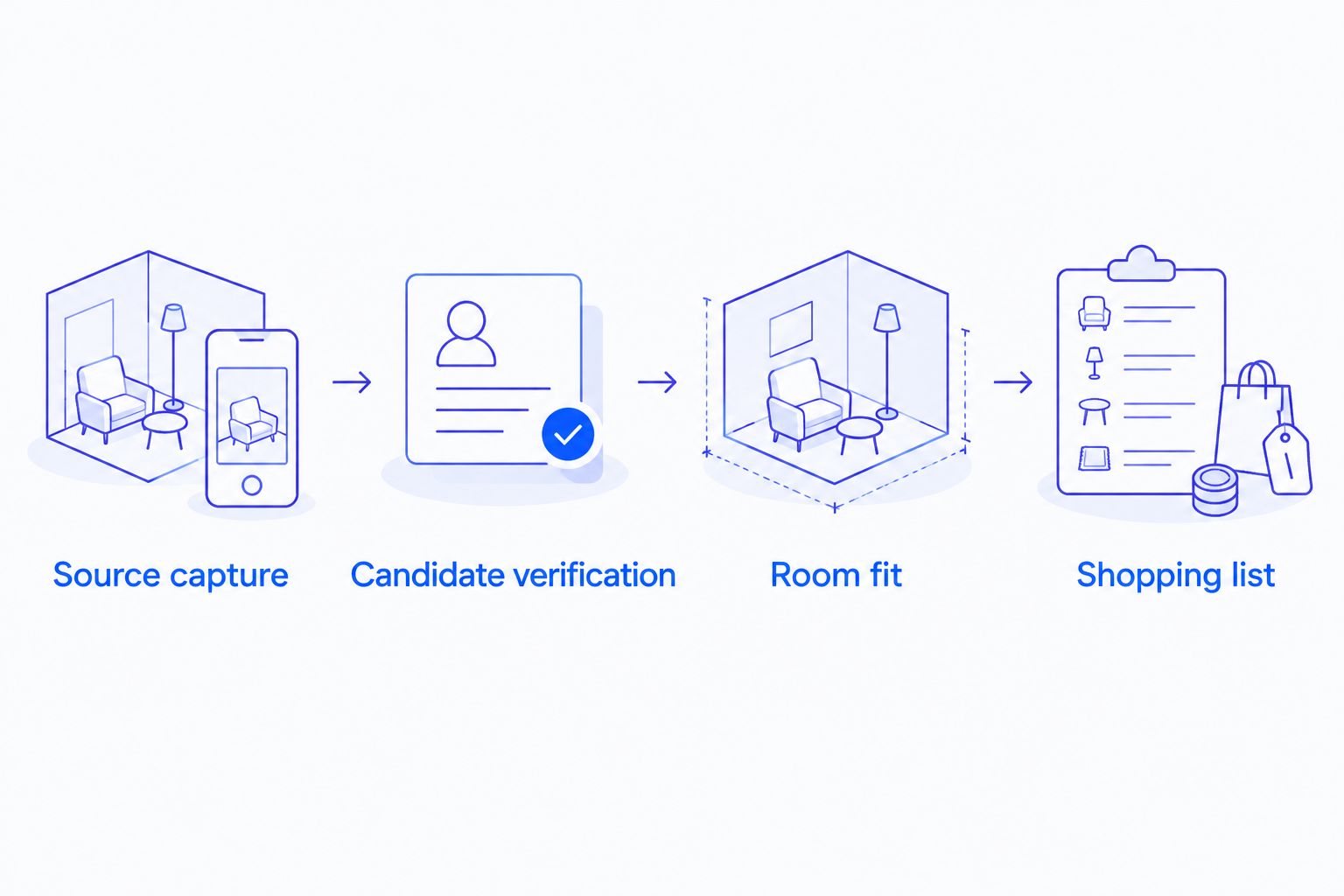 Verify the candidate and its fit before treating the link as ready to act on.
Refresh the list when a room tour changes
Use the same sheet when a creator publishes a follow-up tour or changes the room. This adjacent workflow prevents a new video from erasing the reasoning behind an earlier choice.
- Add the new post address and capture date beside the existing source record.
- Compare the relevant object, not just the room's overall mood.
- Create a new candidate row when the furniture changes; retain the earlier record.
- Recheck dimensions and selected versions before carrying an earlier decision forward.
- Update Reviewed date after completing the check, not merely after opening the file.
Treat an updated tour as new evidence, not automatic confirmation. A different camera angle can reveal details that the first post concealed.
For a 2026 refresh, preserve the original capture date alongside the latest review date. One tells you when the reference was saved; the other tells you when you last checked the candidate.
Troubleshooting
The image search returns several similar objects
Tighten the crop and compare distinguishing details: leg shape, arm profile, seams, cushion divisions, and base construction. If identity remains unresolved, retain Visual candidate and assess suitability without claiming an exact match.
The product page opens on a different version
Compare the page's active selection with Selected version. Re-enter the relevant choices and verify the displayed dimensions; do not assume that copying the page address preserved the configuration.
The furniture fits on paper but blocks movement
Return to the taped footprint and test the room during ordinary use. Check moving elements as well as static ones, including cabinet doors, dining chairs pulled out, and adjustable seating where relevant.
The screenshot and listing colors disagree
Compare written finish information rather than screen color alone. Video lighting, editing, and display settings change appearance; review material samples when the seller offers them before making a finish-dependent decision.
The saved source disappears
Use the recorded creator details and personal reference image to preserve context. Keep the attribution unresolved unless you have a reliable source; a broken post does not strengthen the candidate's identity.
Customize your workflow
Build separate views for different rooms, but keep the same evidence and decision labels throughout. A consistent system makes it easier to compare a dining project with a living-room project without relearning your own notes.
Add household-specific checks only where they change the decision. Cleaning instructions, cable access, adjustable parts, and upholstery texture deserve separate fields when those details affect daily use.
Sohnne furniture belongs on the shortlist when its documented dimensions, materials, and function meet your requirements. Choose for the room you use, not the camera angle you saved.
FAQ
How do I shop furniture from room tours when nothing is tagged?
Capture a clear frame, search by image and visible features, then verify candidates on their product pages. Keep an unconfirmed result labelled as a visual candidate rather than the exact item.
Can a screenshot identify the exact furniture in a video?
A screenshot alone does not establish an exact identity. Use creator references and distinguishing product details to support identification.
Do I need an automated integration to make a shoppable furniture list?
No, a spreadsheet with product links, selected versions, and fit checks creates a usable shoppable list. This workflow uses manual capture and verification rather than automatic social-platform syncing.
What measurements should I record before buying furniture from a room tour?
Record your usable room space, the candidate’s listed dimensions, and the delivery route. For seating, also review seat dimensions and how the intended user will sit down and get up.
Is a creator’s furniture link enough to confirm the right version?
No, confirm the size, finish, and configuration separately. A linked page can open with selections that differ from the furniture shown.
Where does Sohnne fit into this workflow?
Sohnne is a source for mid-century modern furniture candidates. Compare each listing with your room requirements without assuming it identifies the object in the tour.
Can I publish screenshots in a shared furniture guide?
Get permission before republishing another person’s screenshots. You can keep source references and written observations in your list without presenting someone else’s imagery as your own.
One last thing
Before acting on your 2026 shortlist, hide the screenshot column and read the remaining information. If the listing, dimensions, selected version, and fit notes no longer justify the choice, return the item to Hold.
The room tour should start your search. Your own room should finish it.
Related guides
- How to choose furniture scale for high ceilings
- How to arrange a living room around a fireplace
- How to add texture to a neutral living room
Stay connected with us!
Keep in touch with what’s new and next. Subscribe for weekly insights, product launches, and community news!